How to send an investor client a branded analysis in CapScout
On the Team plan, open the home's full analysis, click Share, choose which sections the client sees, add your broker's take, attach the report to the client and send. The client gets a link to a report carrying your logo, colors and firm name, with no account to create. Reports attached to the client also collect in their deal room, which keeps them open after each share link expires.
The steps in short
- Set up your firm's branding once. In your firm's branding settings, add your logo, colors, display name, contact block, footer and disclaimer. Switch on Hide CapScout branding if you don't want the Powered by CapScout line or the ScoutSense name on anything a client reads.
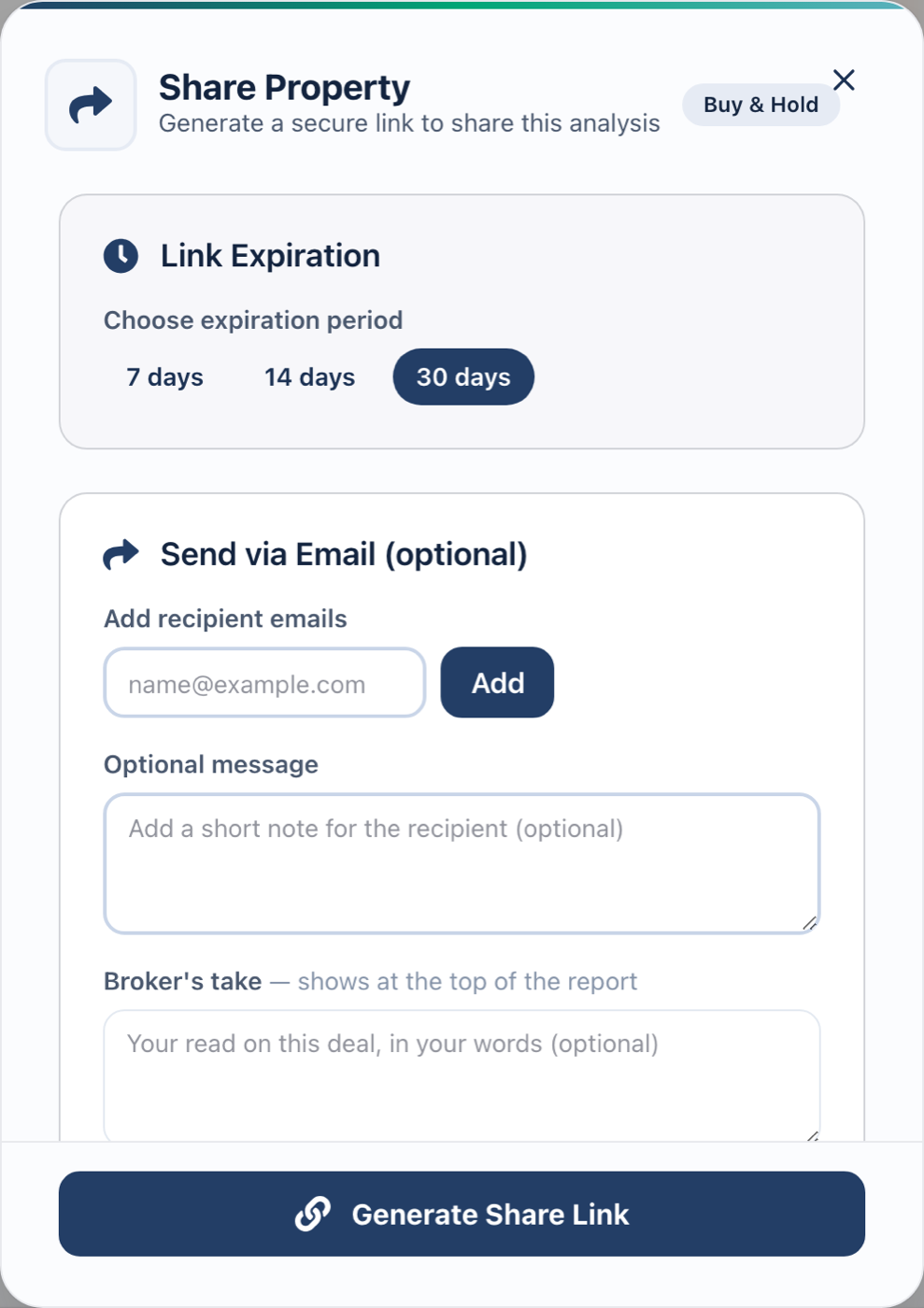
- Open the home and click Share. From the home's full analysis, click Share to open the Share Property dialog.
- Choose how long the link lasts. Under Link Expiration, pick 7, 14 or 30 days. Thirty is the default.
- Write your broker's take and pick the sections. Add a broker's take, which sits at the top of the report above the numbers. Use Customize sections for this share to hide any of the nine written sections for this client.
- Attach it to the client and send. Use Attach to client so the report lands in that client's deal room (if they have one; sending all of a client's reports from their page creates it), add their email and an optional note, then press Send Email & Generate Link. Generate Share Link gives you the link without sending an email.
A shared CapScout report is the full analysis of one home, sent to one client, under your firm’s name. You decide which parts they read and add your own view at the top. Whatever you send them, they can find again in one deal room.
It needs the Team plan. An individual account can share a report too, but it carries CapScout’s name.
What does the client see?
The report opens under your logo, colors and firm name, with your contact block, footer and disclaimer. Your broker’s take comes first. Then the numbers and whichever written sections you left on.
Nine written sections can be hidden, as a firm default or for a single share: the deal narrative, risk register, decision scorecard, negotiation guidance, exit strategy, location, comparables, personal fit and data quality. The financial figures always show. A hidden section is removed before the page is sent, not just collapsed on screen.
Branding is read when the client opens the page, so a new logo shows up on reports you’ve already sent.
Where does CapScout still show?
Until you switch on Hide CapScout branding in your firm’s settings, the report carries a “Powered by CapScout” line and the analysis is labelled ScoutSense. With it on, neither appears on the report, the PDF or the email.
Two things stay ours either way. Deal-room links sit on your firm’s own subdomain of capscout.ai once you’ve claimed one in your branding settings, and on app.capscout.ai until then; a link sent to a client without a deal room is on app.capscout.ai, and there’s no custom domain. Email arrives from “your name via your firm” on our sending domain, and replies go to you once your email address is verified.
How long does a link last?
A share link lasts 7, 14 or 30 days. After that it shows an expired page under your brand.
A report opened from the client’s deal room keeps working after its link expires. The room is one link per client that holds everything you’ve sent them. You can switch it off or replace its link at any time, and existing room links keep working if your plan lapses.
A share is a snapshot of the analysis on the day you send it. Share that home with the same client again before the link expires and they keep their link, refreshed with the latest analysis, your new section choices and your new broker’s take.
Will I know they read it?
Yes. Each report records its views and the last time it was opened, each deal room records its opens, and you’re notified when a client opens one, at most once a day for each report and each room. When a client opens your reports on three separate days in a week, or keeps returning to their deal room, you get a nudge to follow up. Your own previews don’t count.
Can I send a PDF or an offer?
From the analysis, Export gives you an Analysis report (PDF) and an Offer (LOI), both under your branding; the PDF follows your firm’s section settings. They download to you to forward or print; they aren’t attached to the share.
To send several reports at once, open the client: when they have underwritten reports you haven’t sent, the page offers to send them all, and doing so creates their deal room if they don’t have one yet.
For what belongs in the client version of an analysis, see how to share an investment property analysis with a client. To compare this with other white-label reporting tools, see white-label investment analysis reports.
Frequently asked questions
Does my client need a CapScout account?
No. The link is the key. There's no sign-up and no password for the client to set.
Can I stop a client from opening a report?
You can switch a client's deal room off or replace its link, which closes every report opened through the room. Each report's own share link still works until its 7, 14 or 30 days are up; it can't be withdrawn early.
If I update the analysis, does the client see the change?
No. A shared report is a snapshot of the analysis on the day you shared it. Sharing the same home with the same client again before the link expires keeps their link and refreshes it: the latest analysis, your new section choices and your new broker's take.
Can individual investors share a report?
Yes, but outside the Team plan the report carries CapScout's name and an invitation to analyze a home of their own. Your branding, section control and deal rooms need the Team plan.
Underwrite, send and follow up under your own name. CapScout for teams puts branded analysis, a deal room per client and a CRM for investor clients on one seat.
Start a 7-day trialSee the Team plan